TypeBot User Manual
Download AppWelcome to the TypeBot User Manual! This guide will walk you through how to use TypeBot to automate your remote desktop keyboard workflows.
1. Download and Payment
Getting Started
- Click the Download App button at the top right of this page to download
TypeBot.exe. - Double-click
TypeBot.exeto run the application. - At the login screen, click Sign in with Google. A browser window will open to authenticate your account.
- Once authenticated, TypeBot will automatically load your account details.
![[Please upload 'login.png' to app/static/images/manual/]](/static/images/manual/login.png)
Free Trial vs. Premium Plan
Every new user starts on a Free Trial plan.
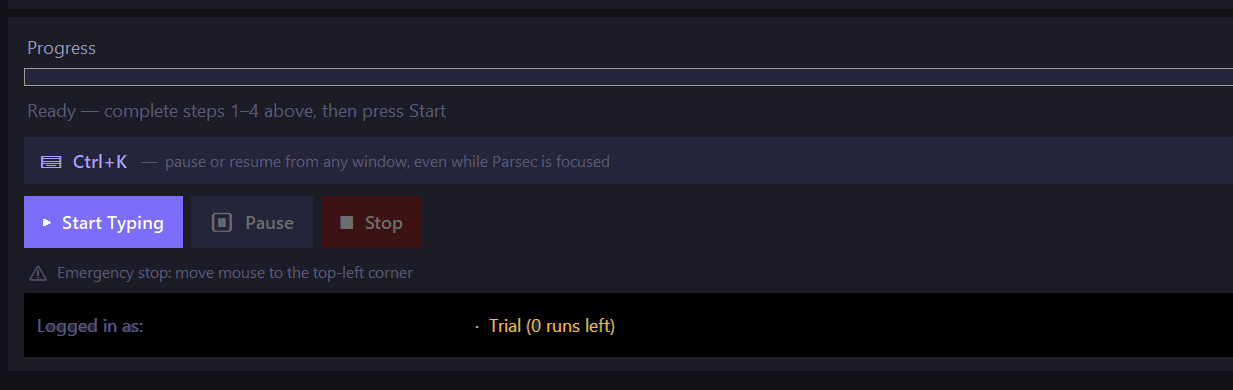
- Free Trial Constraints: You have 2 free runs and a maximum limit of 200 non-space characters per run.
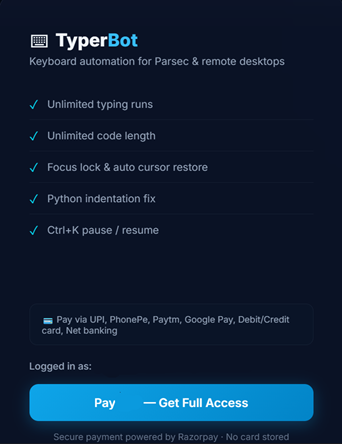
- Premium Plan: Unlocks unlimited runs, unlimited characters, and the powerful Focus Lock feature for lifetime access.
How to Upgrade
If you reach your trial limits, TypeBot will ask you to upgrade:
- Click Buy Full Access — ₹50 (or visit the Buy page).
- A secure payment page will open in your browser.
- Enter your email and select your payment method (UPI, PhonePe, Paytm, or Credit/Debit Card).
- After successful payment, your account will upgrade automatically. Return to TypeBot—no restart required!
2. App Features
TypeBot is designed to safely and precisely inject keystrokes into remote systems like Parsec, AnyDesk, or VNC. Core features include:
- Human-like Typing Engine: Variable key delays, configurable typing speeds (10 to 200 WPS), and humanized typo generation.
- Focus Lock (Premium): Monitors your active window and automatically pauses typing if you click out of your remote desktop session.
- Global Hotkey Control: Instantly pause or resume typing from any window using
Ctrl + K. - Smart Indentation: Accurately replicates code indentation for languages like Python by adjusting to the remote editor's auto-formatting.
- Failsafe Stop: An emergency stop feature is built-in—just throw your mouse into the top-left corner of your physical screen.
3. User Guide: How to Start the App
This step-by-step guide explains how to properly configure and start a typing run.
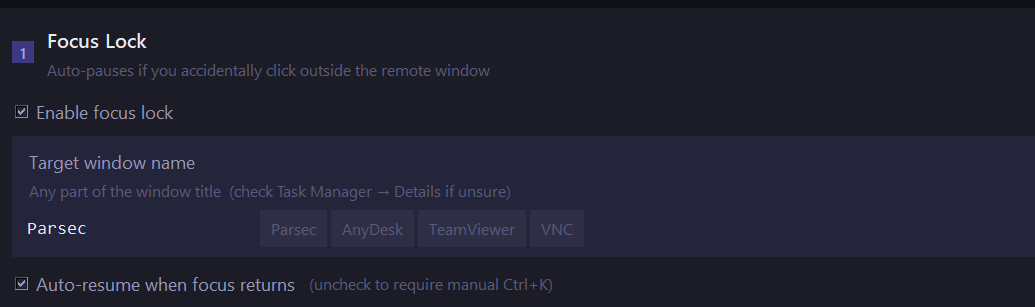
Step 1: Focus Lock (Premium)
Focus lock prevents the bot from typing into the wrong window if you alt-tab or accidentally click away.
- Check Enable focus lock.
- Enter your Target window name (e.g., Parsec, AnyDesk, or TeamViewer). You can use any substring of the actual window title.
- Keep Auto-resume when focus returns checked if you want the bot to resume typing automatically as soon as you click back into the remote desktop.
Step 2: Code to Type
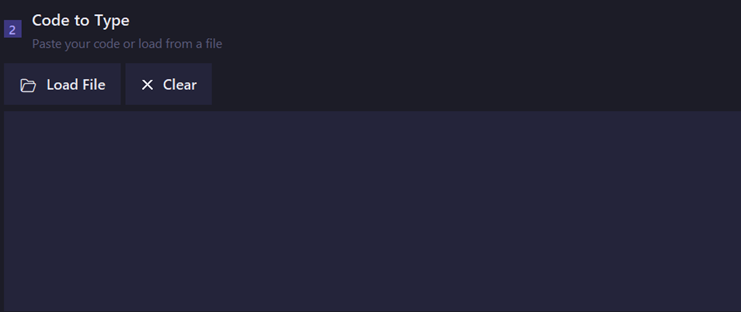
- Paste your code snippet directly into the text box.
- Alternatively, click 📂 Load File to import a .py, .js, .txt, or other supported text file.
- The software will display your active character count. If you are on the Trial Plan, ensure this is under 200 characters.
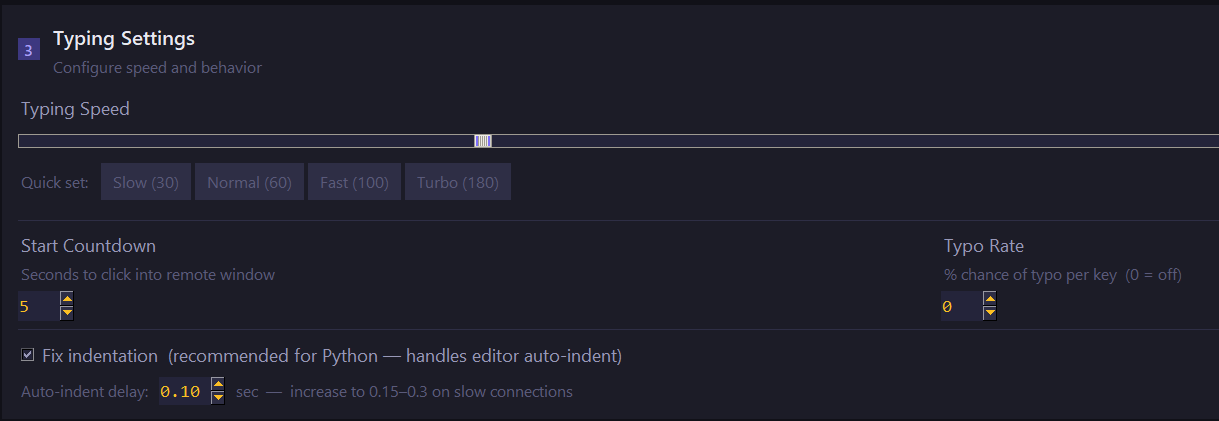
Step 3: Typing Settings
Fine-tune how your code is typed:
- Typing Speed: Use the slider or quick presets (Slow, Normal, Fast, Turbo) to set your desired WPS (Words Per Second).
- Start Countdown: Set the delay (in seconds) between pressing "Start" and the actual typing. This gives you time to focus your remote window.
- Typo Rate: Want to look more human? Add a percentage chance for the bot to make and instantly backspace-correct an intentional typo.
- Fix Indentation: Check this box to ensure your editor's auto-indent plays nicely. If your network connection is slow, increase the Auto-indent delay.
Execution and Controls
- Click the purple ▶ Start Typing button.
- A countdown will start! Quickly click inside your target remote application (e.g., Parsec).
- During the run:
- Press
Ctrl + Kon your keyboard to toggle Pause / Resume at any time. - Use the UI buttons (⏸ Pause, ■ Stop) to control the flow.
- If something goes wrong, use the Emergency Stop (move your mouse to the top-left corner of your physical screen).
- Press